Paste this prompt into Claude Code or a similar AI agent on your computer. It downloads Volumio OS, writes it to your card or drive and walks you through setup. It asks you before it writes to any disk.
Show the prompt
Help me install Volumio OS, a free music player system, on a Raspberry Pi or a PC. I'm not technical: explain each step in plain words, one step at a time, and wait for me to say I'm done before moving on. Ask before you install anything on my computer.

1. Ask me which device I want to turn into a music player (a Raspberry Pi, or a PC) and what I'll write Volumio OS to (a microSD card for a Raspberry Pi, a USB drive for a PC). Check which operating system my computer runs.

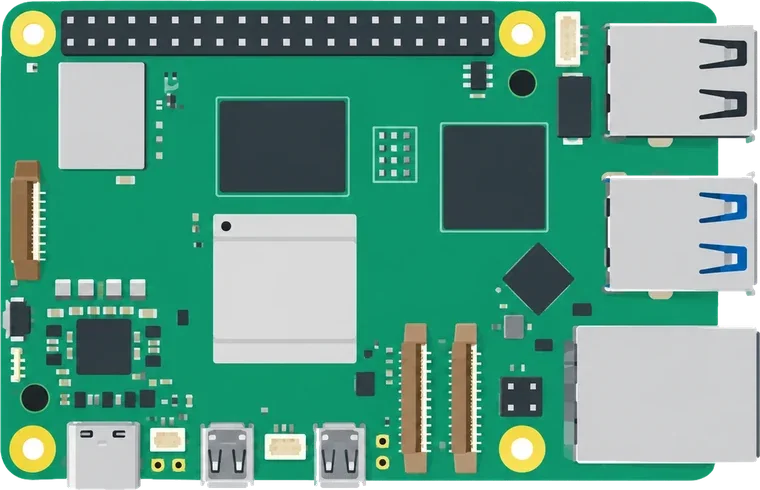
2. Download the latest Volumio OS image for my device. Get the current download link from https://volumio.com/api/os-release ("pi" for Raspberry Pi, "pc" for PC). Don't look up versions anywhere else. If that address doesn't give you a link (for example it answers "ok": false), wait a few minutes and try again, or take the link from the download page at https://volumio.com/get-started/.
   By downloading I accept the Terms and Conditions: https://volumio.github.io/volumio-tos/
   The download is a .zip file. Unzip it to get the .img file inside. Check that my card or drive is bigger than the .img file.

3. Write the .img file to my card or drive. This erases everything on it.
   - Before writing, list the disks you can see, tell me which one you think is my card or drive (its name and size), and wait for me to confirm it. Never write to a disk I haven't confirmed, and never to the disk my computer runs from.
   - Writing needs my computer's administrator password. Tell me before you ask for it, and let me type it myself.
   - If my card shows as read-only, tell me to check the small lock switch on its side. If my computer's built-in card slot still won't write to it, suggest a USB card reader plugged straight into the computer.
   - If you can't do this safely, or I'd rather do it myself, walk me through Raspberry Pi Imager: pick the option for a custom image, select the .zip or .img file, choose my card or drive, and write it.
   - When it's done, eject the card or drive safely.

4. Help me start it: put the card or drive into the device, connect my DAC or amplifier, plug in an Ethernet cable if I can, and switch it on.
   - On a PC: right after switching it on, open the boot menu (the key shows briefly on screen, often F12, F11 or Esc) and choose the USB drive. If Windows starts instead, help me find the right key for my PC.
   - The first start takes a few minutes.

5. Help me connect to it:
   - Easiest: install the Volumio app on my iPhone or Android phone and follow its setup for a new device.
   - Or open http://volumio.local in a browser on the same network.
   - Without Ethernet, a device with Wi-Fi creates its own Wi-Fi network named after Volumio. Look up its current password and address in the Volumio help center (https://help.volumio.com/), then help me join it and choose my home Wi-Fi. Devices without Wi-Fi need the Ethernet cable.
   - If volumio.local doesn't open, help me find the device's address in my router's list of connected devices.

6. When music plays, suggest what to try next: adding my music library, web radio, and Volumio Premium (check https://volumio.com/ for what it currently includes).

If something doesn't work, ask me what I see and suggest the simplest fix first (restart the device, check the cables, try another card or drive). For more help: https://help.volumio.com/ and https://community.volumio.com/
Plays everything
All your music, any DAC
Stream your music services, play your own files from MP3 to DSD and tune in to web radio, bit-perfect. Then send it to the DAC you love.
Built in
TIDAL (with Volumio Premium)
Qobuz (with Volumio Premium)
Spotify Connect
Highresaudio (with Volumio Premium)
AirPlay
UPnP and DLNA
Web radio
Your files
USB drives
Network drives
CDs (with Volumio Premium)
Bluetooth (with Volumio Premium)
Inputs (with Volumio Premium)
Home Assistant
With plugins
Spotify
YouTube
YouTube Music
SoundCloud
Mixcloud
Bandcamp
Pandora
Radio Paradise
Podcasts
FM and DAB+
Jellyfin
Plex
Subsonic
Roon
Lyrion
Last.fm
Plays to
USB DACs
Raspberry Pi DAC boards
DSD, native or DoP
Multiroom (with Volumio Premium)
Chromecast (with Volumio Premium)
Sonos (with Volumio Premium)
Your browser (with Volumio Premium)
On your own hardware, the ones with a star come with Volumio Premium. How each one works
One player for everything
Your streaming services, your library and web radio come together, in high resolution and bit-perfect.
Made for your DAC
Any USB 2.0 DAC works. Raspberry Pi DAC boards are supported natively, and DSD goes out over DoP.
Grows with plugins
Plugins made by the Volumio community add more sources and features.
Every room in sync
With Volumio Premium, play in perfect sync on up to 6 Volumio players.
Free and Premium
Free to start, Premium when you want more
Volumio OS is free for everyone. Volumio Premium adds TIDAL and Qobuz, multiroom and the smart features, with a free trial to try it.
For everyone
Volumio OS
Free
Bit-perfect playback, with the whole system in RAM
FLAC, ALAC, AAC, Vorbis, MP3, DSD and more
Any USB 2.0 DAC, and Raspberry Pi DACs natively
DSD over PCM (DoP)
Network drives (CIFS and NFS), found automatically
Yes. Volumio OS is free to download and to use. Volumio Premium adds TIDAL, Qobuz, multiroom, CD playback and more, with a free trial to try it. It costs a month, or a year.
What do I need to get started?
A Raspberry Pi or a PC, a microSD card (or a USB drive for a PC) and Raspberry Pi Imager to write Volumio OS to it. Then your phone or a browser to set it up.
Which DACs work with Volumio OS?
Any USB 2.0 DAC. Raspberry Pi DAC boards are supported natively, and DSD plays over DoP.
How do I control it?
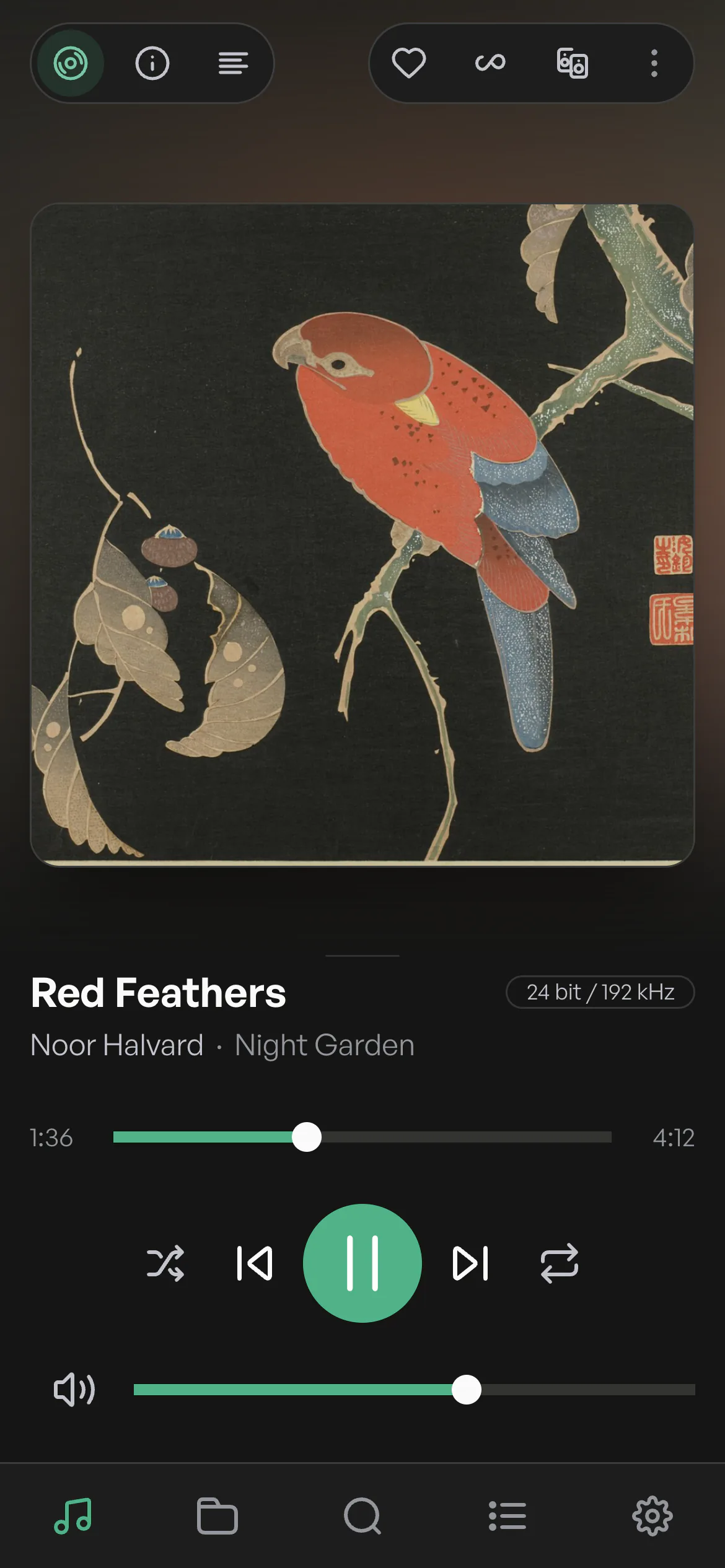
With the Volumio app for iPhone and Android: choose Configure a new device and follow the guided setup. Or open volumio.local in a browser on your computer or tablet.
Can I play TIDAL and Qobuz?
Yes, with Volumio Premium: native TIDAL and Qobuz, plus TIDAL Connect and Qobuz Connect.
On how many devices can I use Premium?
Up to 6, with multiroom sync and remote access.
How is this different from a Volumio device?
Volumio devices need no setup skills: they are designed and assembled in Florence, with the Premium features built in and no subscription. Volumio OS builds a player on hardware you already have. See the devices
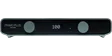 Primo Plus
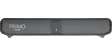 Primo V3
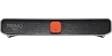 Primo V2
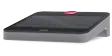 Motivo
 Rivo
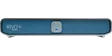 Rivo Plus
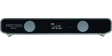 Preciso
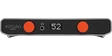 Integro
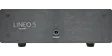 Lineo5
 Lineo5 Duo
 Remoto
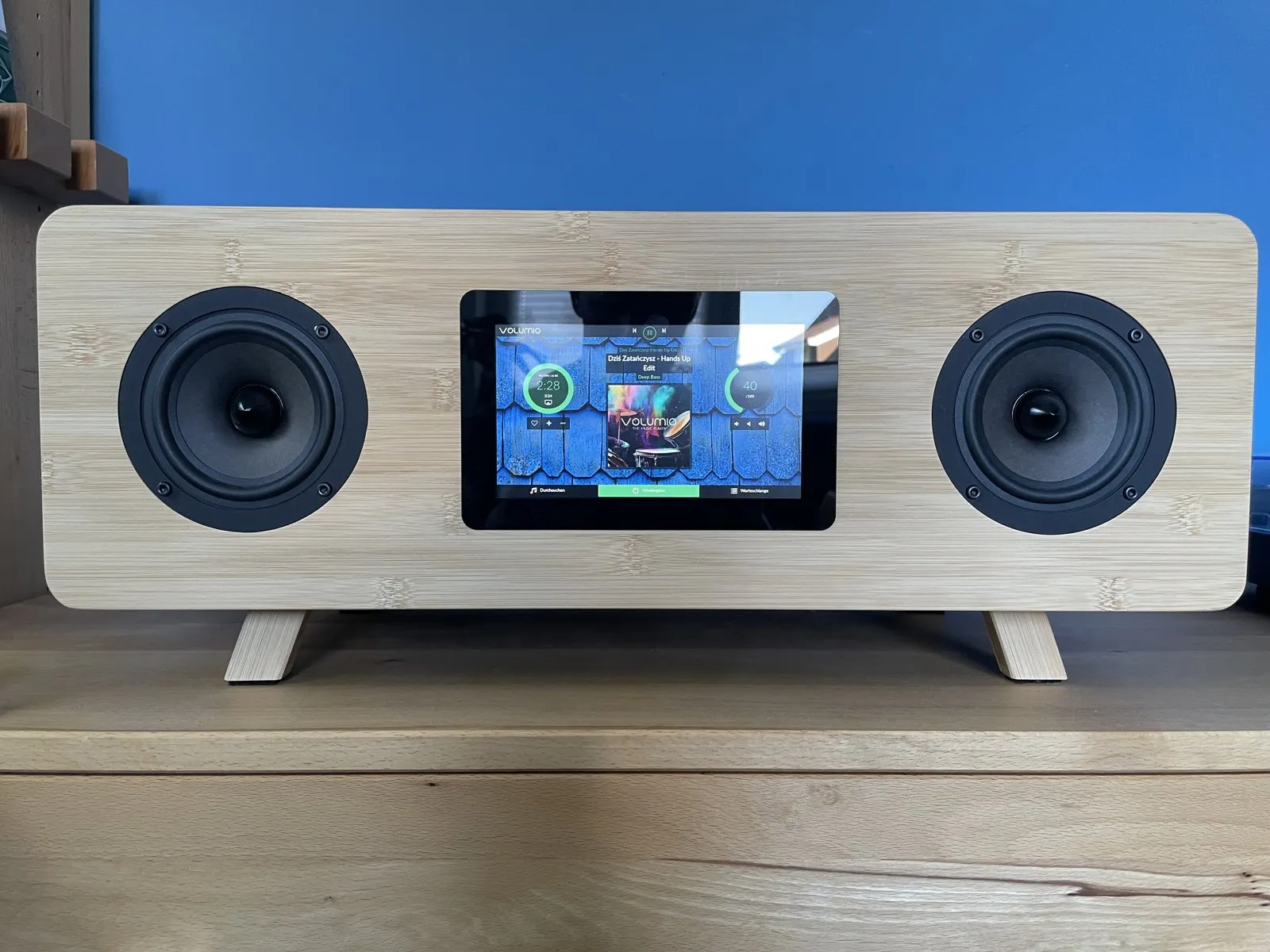
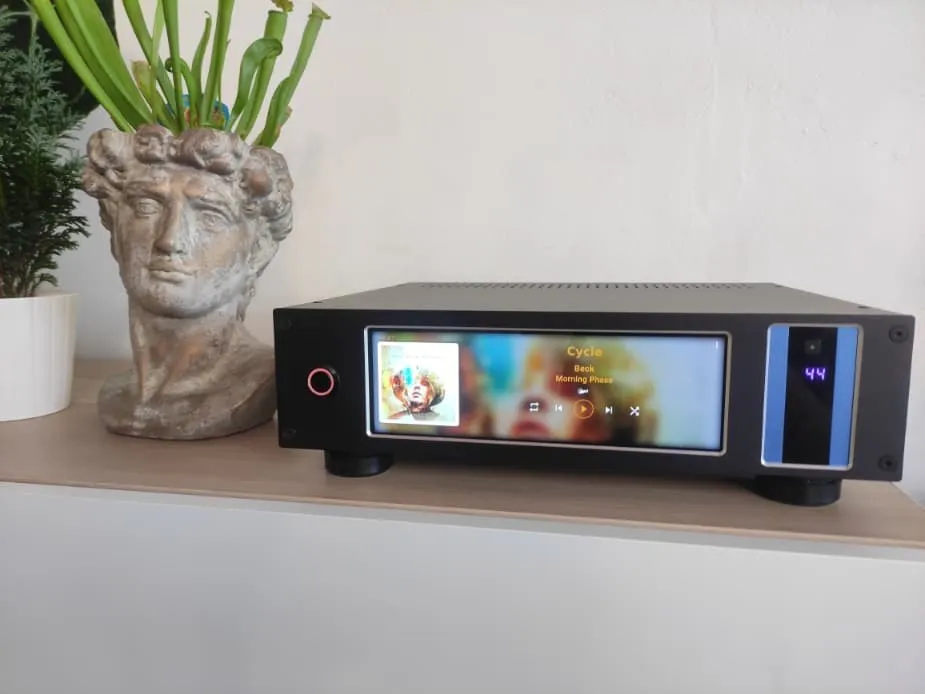
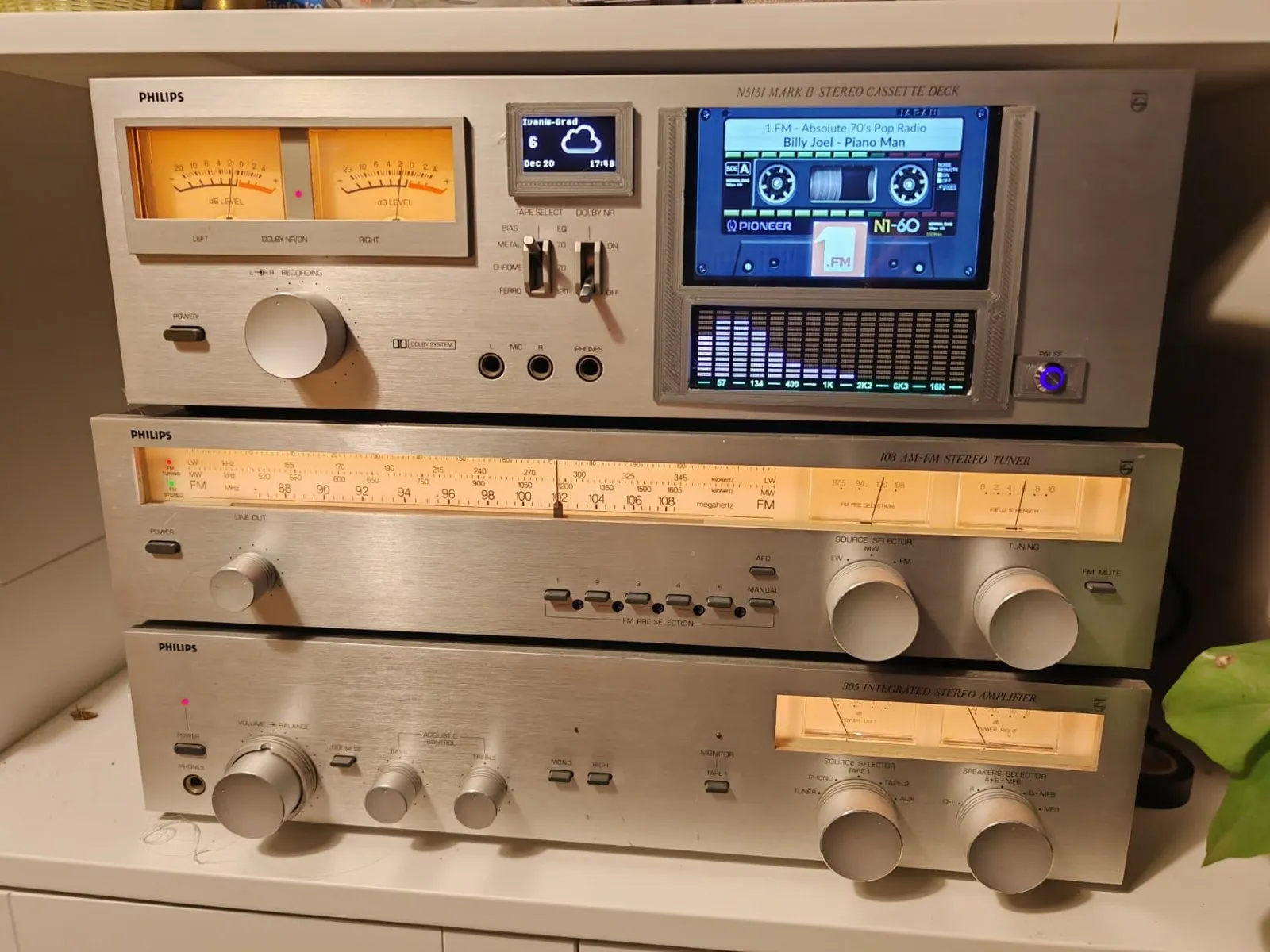
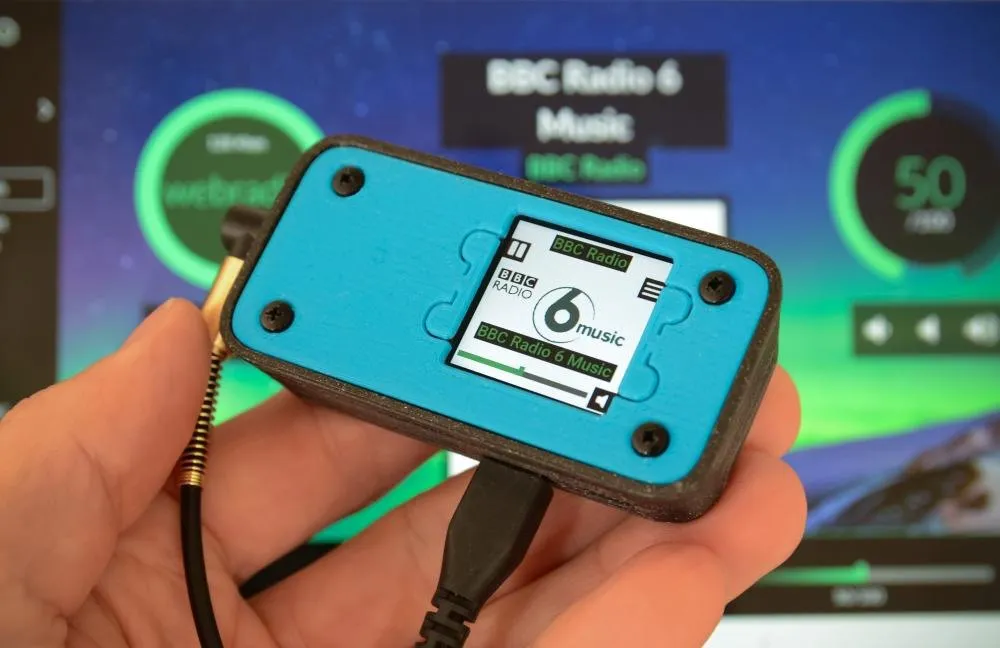
 Primo Plus
 Rivo
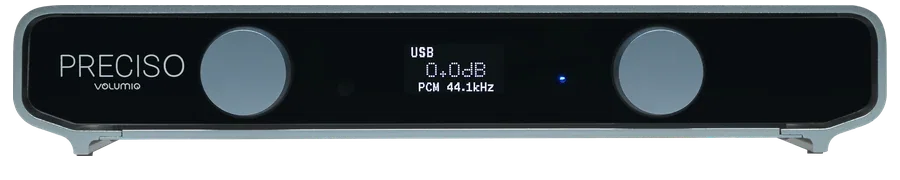 Preciso