Incolla questo prompt in Claude Code o in un agente AI simile sul tuo computer. Scarica Volumio OS, lo scrive sulla scheda o sulla chiavetta e ti accompagna nella configurazione. Prima di scrivere su qualsiasi disco, ti chiede conferma.
Mostra il prompt
Help me install Volumio OS, a free music player system, on a Raspberry Pi or a PC. I'm not technical: explain each step in plain words, one step at a time, and wait for me to say I'm done before moving on. Ask before you install anything on my computer.

1. Ask me which device I want to turn into a music player (a Raspberry Pi, or a PC) and what I'll write Volumio OS to (a microSD card for a Raspberry Pi, a USB drive for a PC). Check which operating system my computer runs.

2. Download the latest Volumio OS image for my device. Get the current download link from https://volumio.com/api/os-release ("pi" for Raspberry Pi, "pc" for PC). Don't look up versions anywhere else. If that address doesn't give you a link (for example it answers "ok": false), wait a few minutes and try again, or take the link from the download page at https://volumio.com/get-started/.
   By downloading I accept the Terms and Conditions: https://volumio.github.io/volumio-tos/
   The download is a .zip file. Unzip it to get the .img file inside. Check that my card or drive is bigger than the .img file.

3. Write the .img file to my card or drive. This erases everything on it.
   - Before writing, list the disks you can see, tell me which one you think is my card or drive (its name and size), and wait for me to confirm it. Never write to a disk I haven't confirmed, and never to the disk my computer runs from.
   - Writing needs my computer's administrator password. Tell me before you ask for it, and let me type it myself.
   - If my card shows as read-only, tell me to check the small lock switch on its side. If my computer's built-in card slot still won't write to it, suggest a USB card reader plugged straight into the computer.
   - If you can't do this safely, or I'd rather do it myself, walk me through Raspberry Pi Imager: pick the option for a custom image, select the .zip or .img file, choose my card or drive, and write it.
   - When it's done, eject the card or drive safely.

4. Help me start it: put the card or drive into the device, connect my DAC or amplifier, plug in an Ethernet cable if I can, and switch it on.
   - On a PC: right after switching it on, open the boot menu (the key shows briefly on screen, often F12, F11 or Esc) and choose the USB drive. If Windows starts instead, help me find the right key for my PC.
   - The first start takes a few minutes.

5. Help me connect to it:
   - Easiest: install the Volumio app on my iPhone or Android phone and follow its setup for a new device.
   - Or open http://volumio.local in a browser on the same network.
   - Without Ethernet, a device with Wi-Fi creates its own Wi-Fi network named after Volumio. Look up its current password and address in the Volumio help center (https://help.volumio.com/), then help me join it and choose my home Wi-Fi. Devices without Wi-Fi need the Ethernet cable.
   - If volumio.local doesn't open, help me find the device's address in my router's list of connected devices.

6. When music plays, suggest what to try next: adding my music library, web radio, and Volumio Premium (check https://volumio.com/ for what it currently includes).

If something doesn't work, ask me what I see and suggest the simplest fix first (restart the device, check the cables, try another card or drive). For more help: https://help.volumio.com/ and https://community.volumio.com/
Suona tutto
Tutta la tua musica, qualsiasi DAC
Ascolta i tuoi servizi musicali, riproduci i tuoi file da MP3 a DSD e sintonizzati sulle web radio, in bit-perfect. Poi manda tutto al DAC che preferisci.
Integrati
TIDAL (con Volumio Premium)
Qobuz (con Volumio Premium)
Spotify Connect
Highresaudio (con Volumio Premium)
AirPlay
UPnP e DLNA
Web radio
I tuoi file
Unità USB
Unità di rete
CD (con Volumio Premium)
Bluetooth (con Volumio Premium)
Ingressi (con Volumio Premium)
Home Assistant
Con i plugin
Spotify
YouTube
YouTube Music
SoundCloud
Mixcloud
Bandcamp
Pandora
Radio Paradise
Podcast
FM e DAB+
Jellyfin
Plex
Subsonic
Roon
Lyrion
Last.fm
Riproduce su
DAC USB
Schede DAC per Raspberry Pi
DSD, nativo o DoP
Multiroom (con Volumio Premium)
Chromecast (con Volumio Premium)
Sonos (con Volumio Premium)
Il tuo browser (con Volumio Premium)
Sul tuo hardware, quelli con la stella sono inclusi in Volumio Premium. Come funziona ciascuno
Un lettore per tutto
I tuoi servizi di streaming, la tua libreria e le web radio, tutti insieme, in alta risoluzione e in bit-perfect.
Fatto per il tuo DAC
Funziona con qualsiasi DAC USB 2.0. Le schede DAC per Raspberry Pi sono supportate in modo nativo, e il DSD esce in DoP.
Cresce con i plugin
I plugin creati dalla community Volumio aggiungono altre sorgenti e funzioni.
Stanze in sincronia
Con Volumio Premium, riproduci in perfetta sincronia su un massimo di 6 lettori Volumio.
Gratis e Premium
Gratis per iniziare, Premium quando vuoi di più
Volumio OS è gratis per tutti. Volumio Premium aggiunge TIDAL e Qobuz, il multiroom e le funzioni smart, con una prova gratuita per scoprirlo.
Per tutti
Volumio OS
Gratis
Riproduzione bit-perfect, con l'intero sistema in RAM
FLAC, ALAC, AAC, Vorbis, MP3, DSD e altro
Qualsiasi DAC USB 2.0, e i DAC per Raspberry Pi in modo nativo
DSD su PCM (DoP)
Unità di rete (CIFS e NFS), rilevate automaticamente
Sì. Volumio OS è gratis da scaricare e da usare. Volumio Premium aggiunge TIDAL, Qobuz, il multiroom, la riproduzione dei CD e altro, con una prova gratuita per scoprirlo. Costa al mese, o all'anno.
Cosa serve per iniziare?
Un Raspberry Pi o un PC, una scheda microSD (o una chiavetta USB, per un PC) e Raspberry Pi Imager per scriverci Volumio OS. Poi lo smartphone o un browser per configurarlo.
Quali DAC funzionano con Volumio OS?
Qualsiasi DAC USB 2.0. Le schede DAC per Raspberry Pi sono supportate in modo nativo, e il DSD viene riprodotto in DoP.
Come si controlla?
Con l'app Volumio per iPhone e Android: scegli Configura un nuovo dispositivo e segui la configurazione guidata. Oppure apri volumio.local in un browser sul tuo computer o tablet.
Posso ascoltare TIDAL e Qobuz?
Sì, con Volumio Premium: TIDAL e Qobuz nativi, più TIDAL Connect e Qobuz Connect.
Su quanti dispositivi posso usare Premium?
Fino a 6, con multiroom sincronizzato e accesso remoto.
In cosa è diverso da un dispositivo Volumio?
I dispositivi Volumio non richiedono competenze tecniche: sono progettati e assemblati a Firenze, con le funzioni Premium incluse e senza abbonamento. Con Volumio OS, invece, costruisci un lettore sull'hardware che hai già. Vedi i dispositivi
 Primo Plus
 Primo V3
 Primo V2
 Motivo
 Rivo
Rivo Rivo Plus
 Preciso
 Integro
 Lineo5
 Lineo5 Duo
 Remoto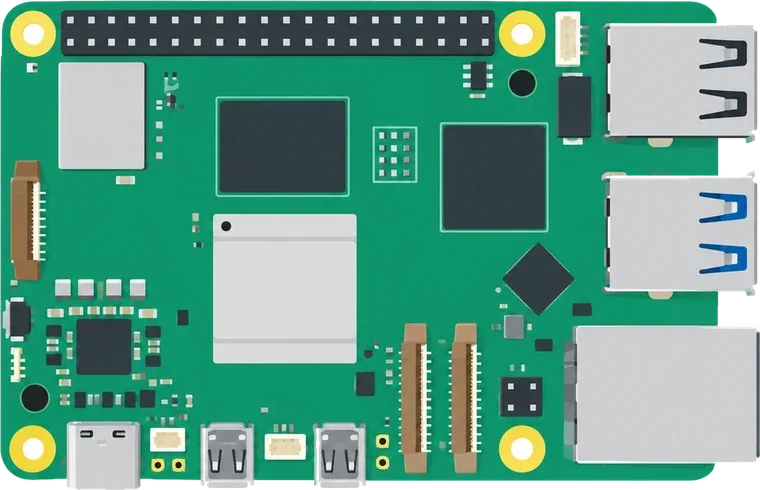
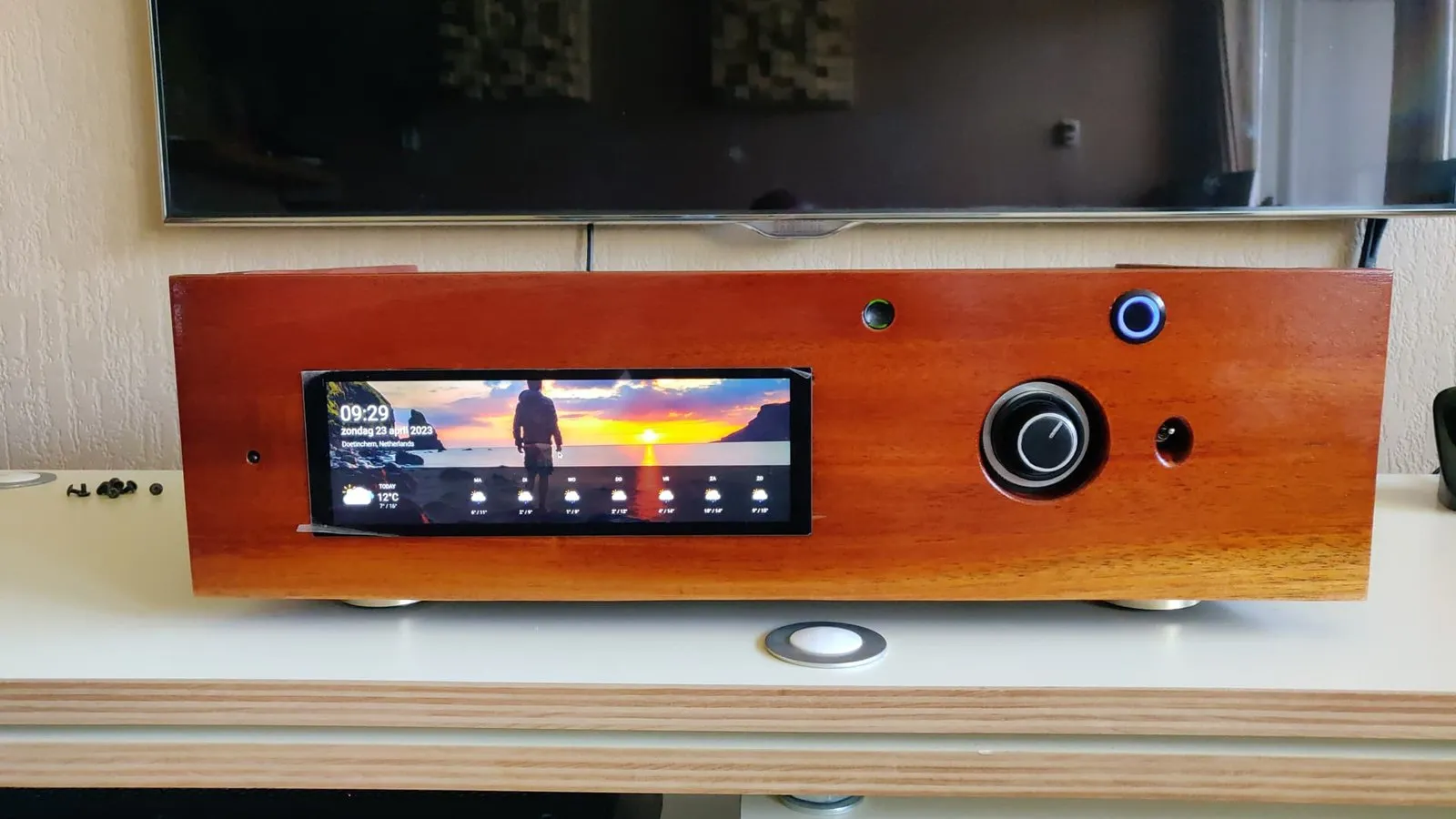
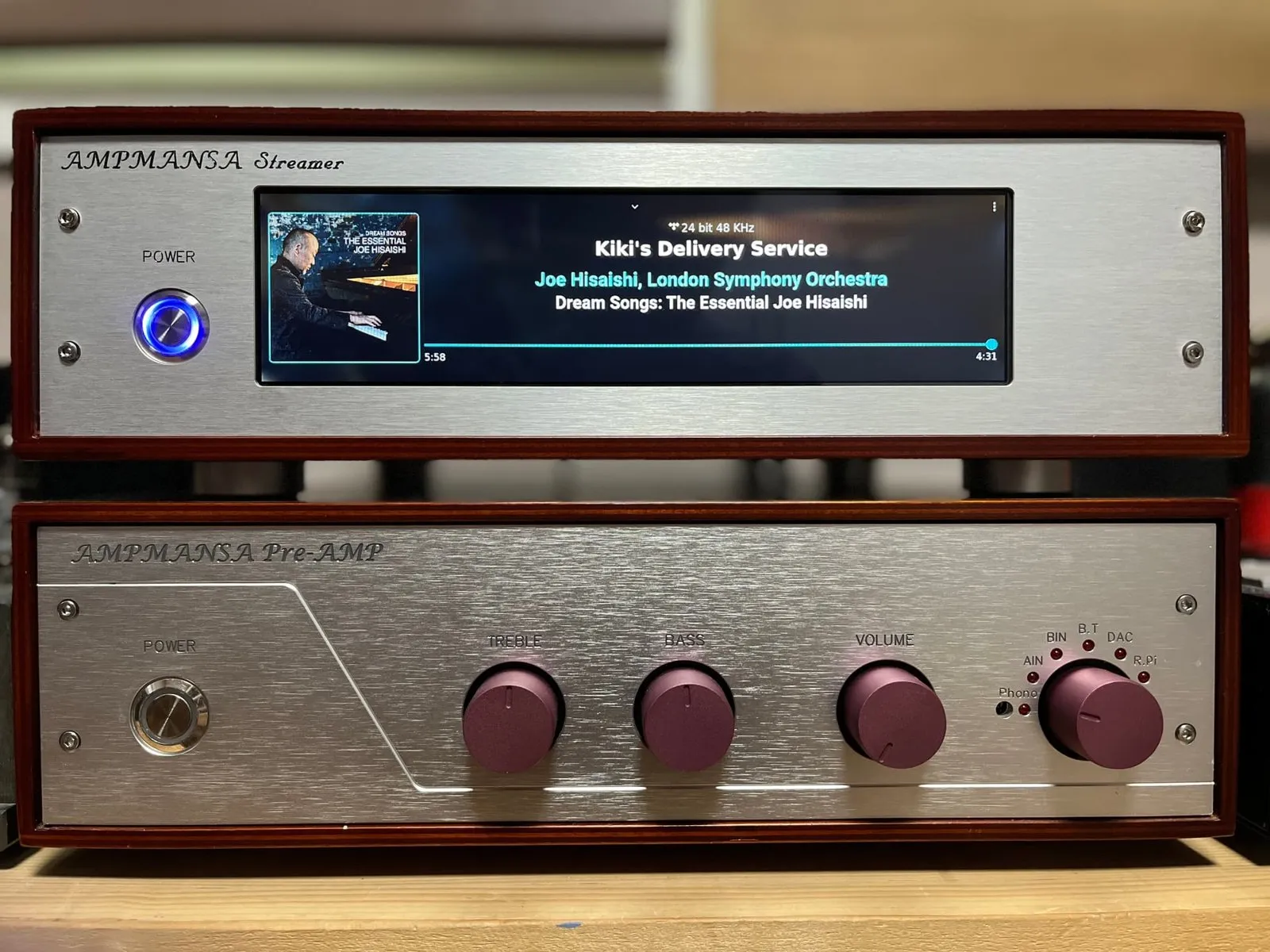
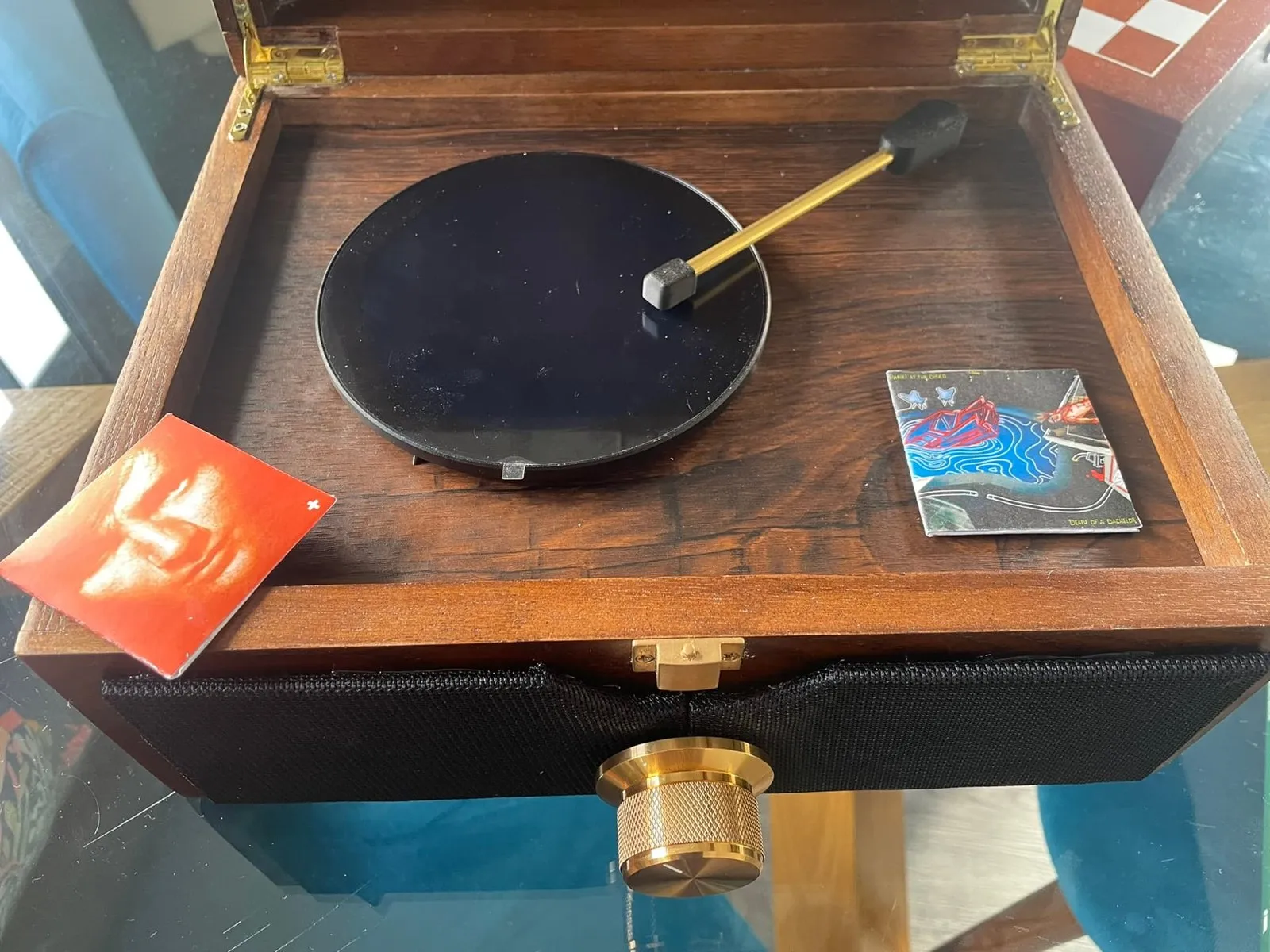
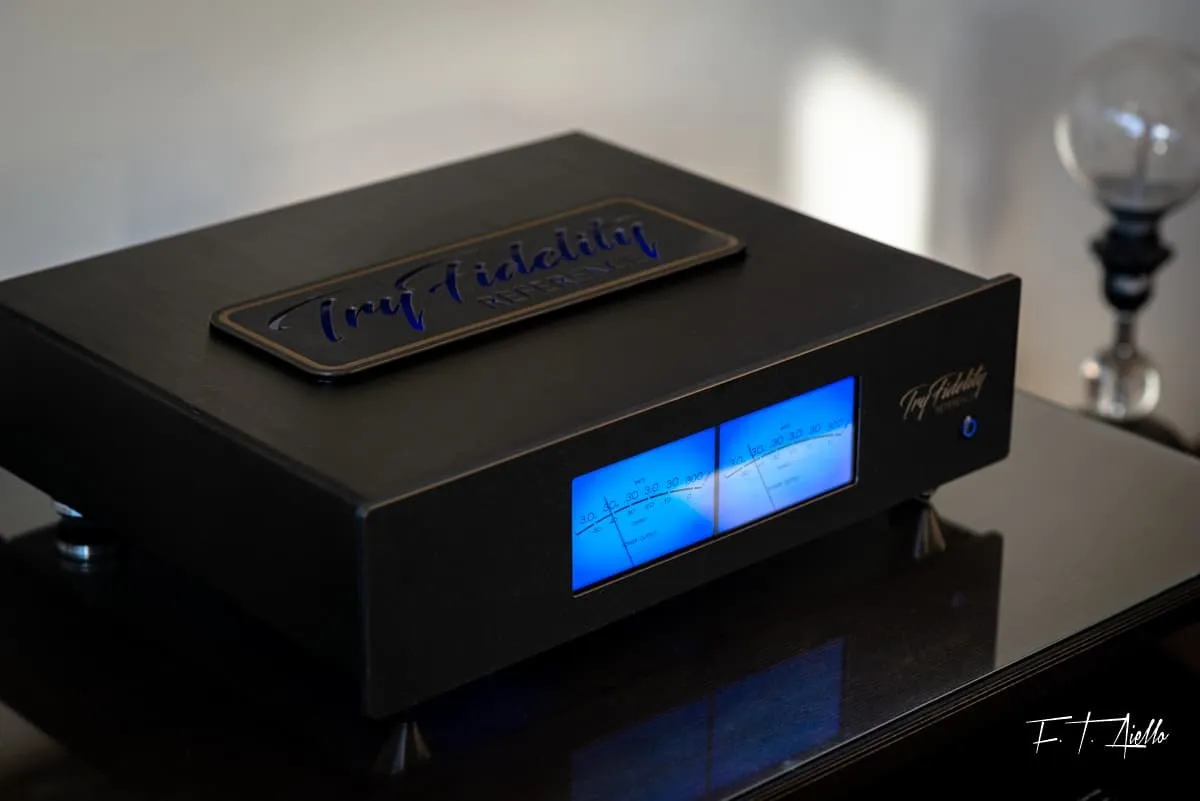
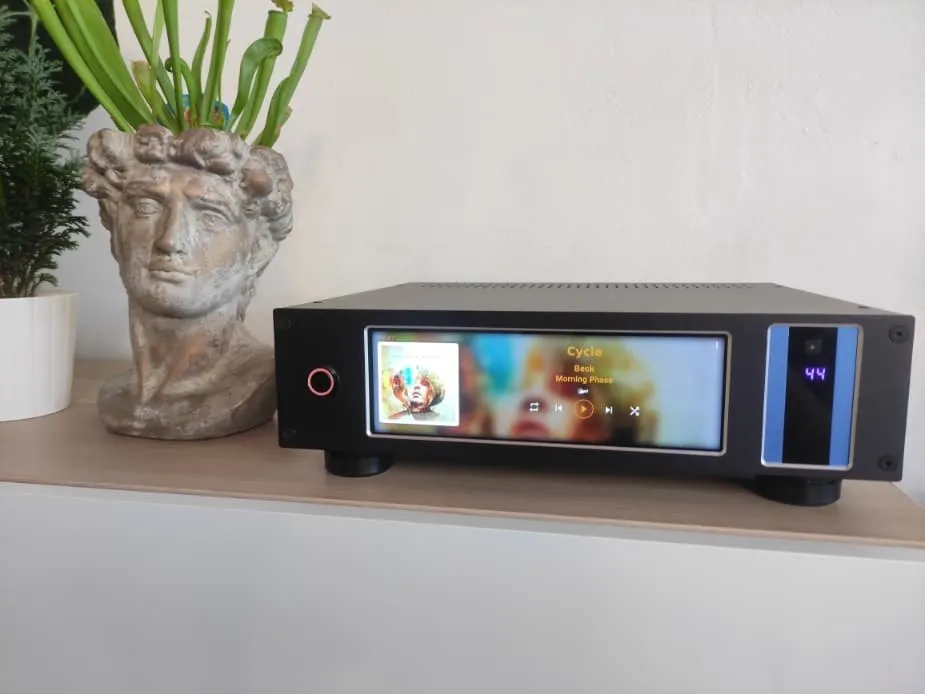
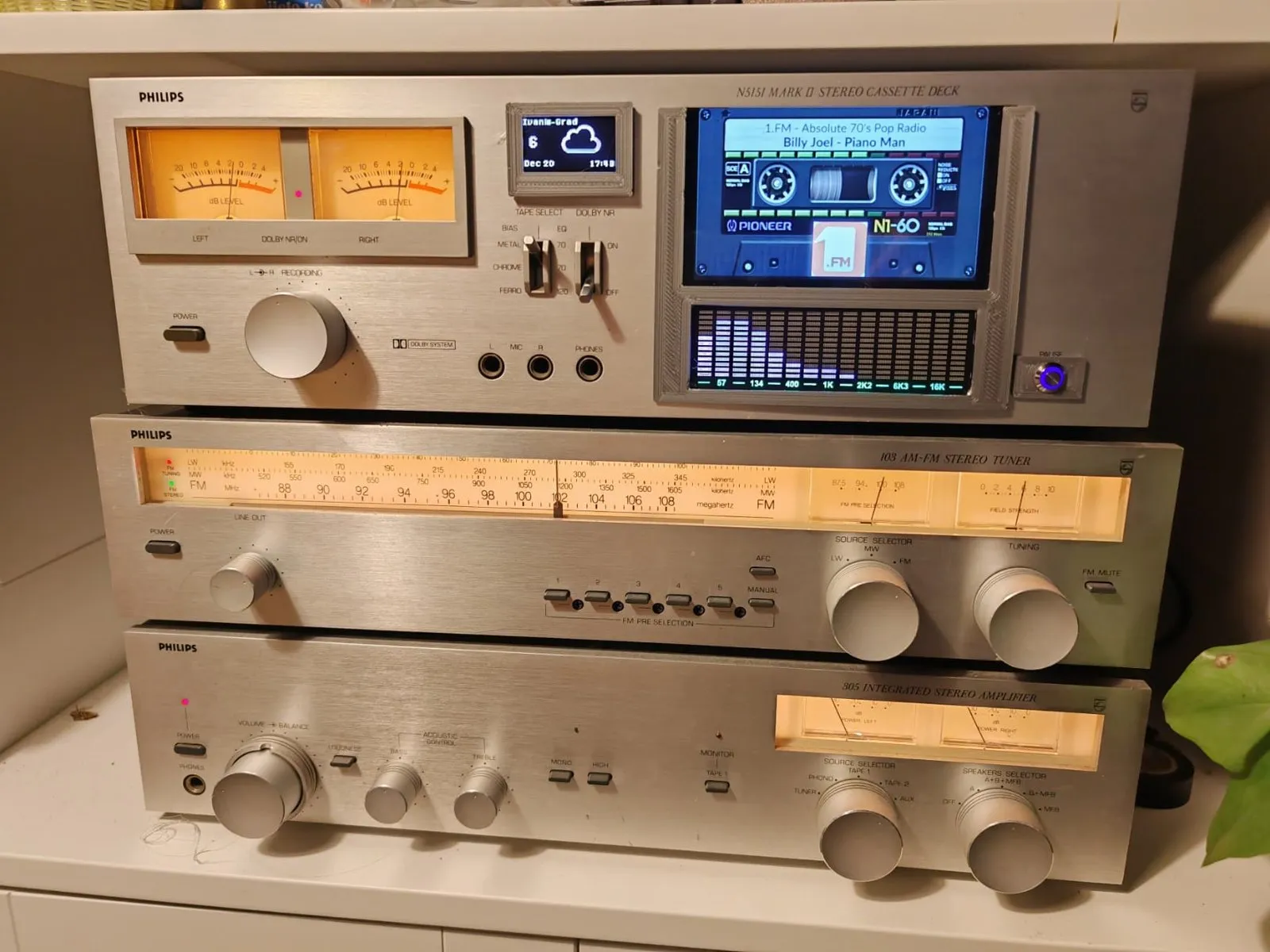
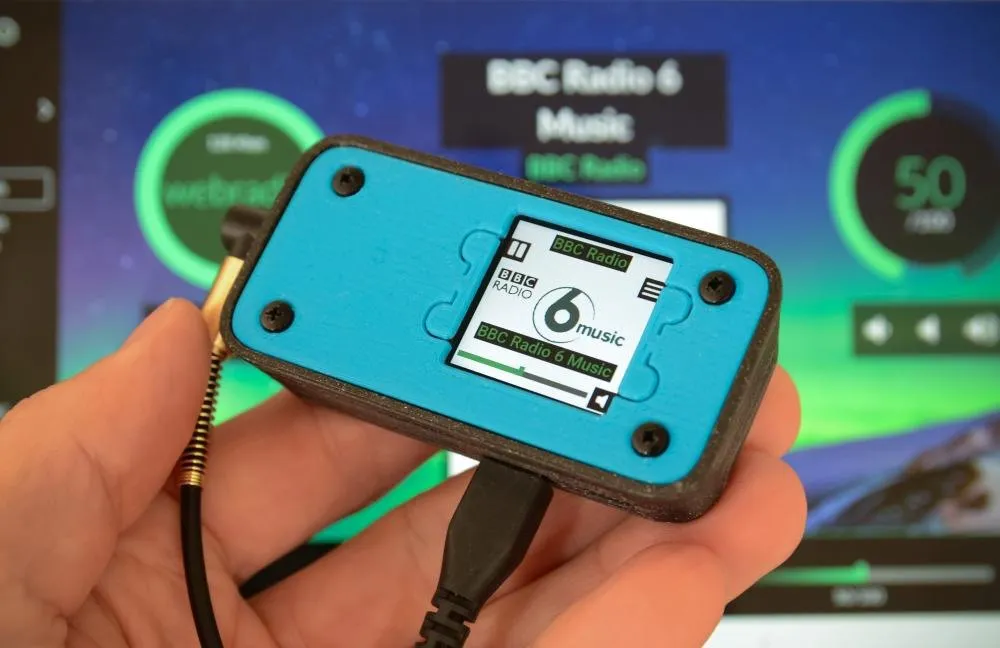
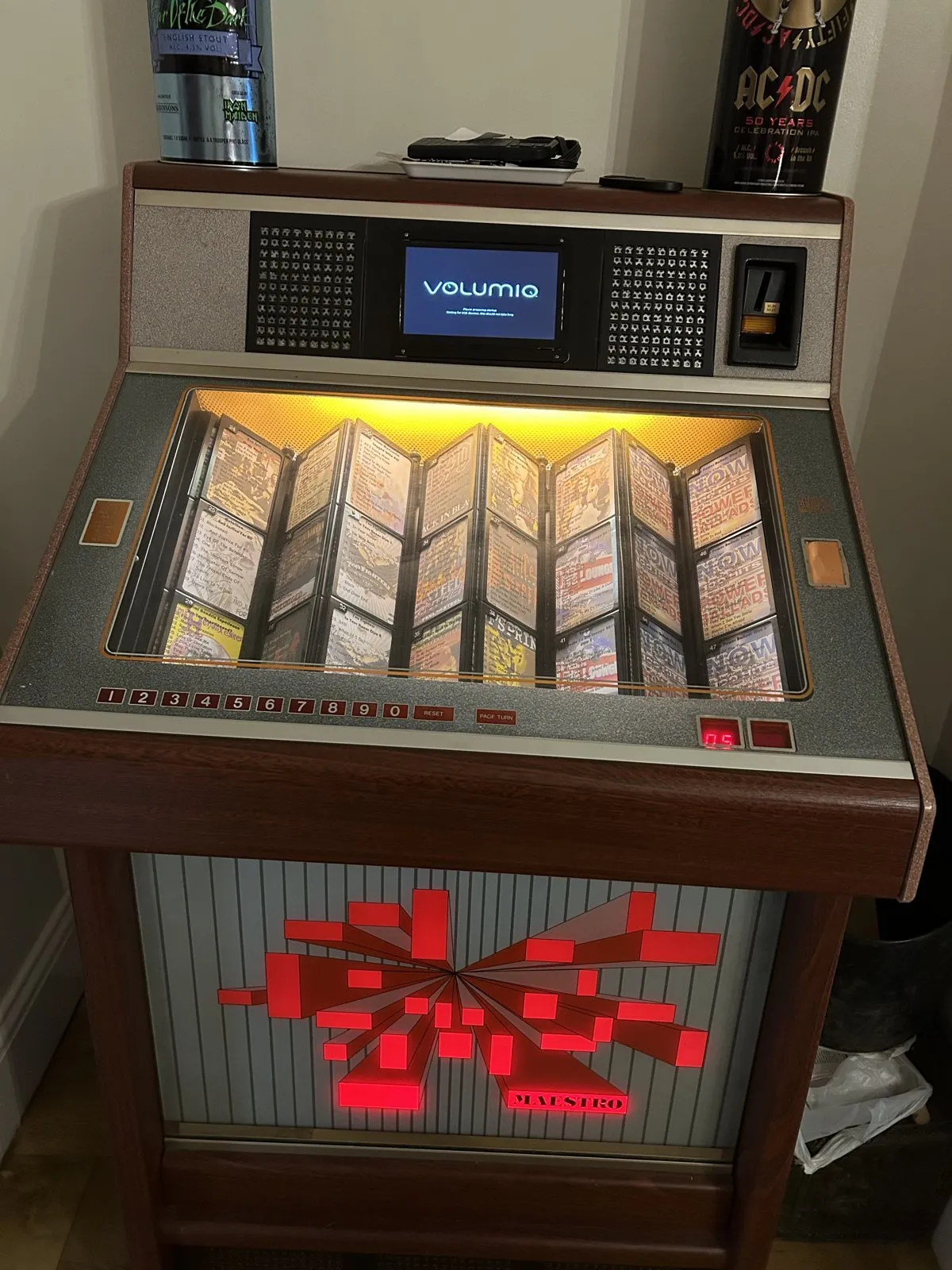
 Primo Plus
 Rivo
Rivo Preciso