 Primo Plus
 Primo V3
 Primo V2
 Motivo
 Rivo
Rivo Rivo Plus
 Preciso
 Integro
 Lineo5
 Lineo5 Duo
 Remoto
Help
Find your Volumio
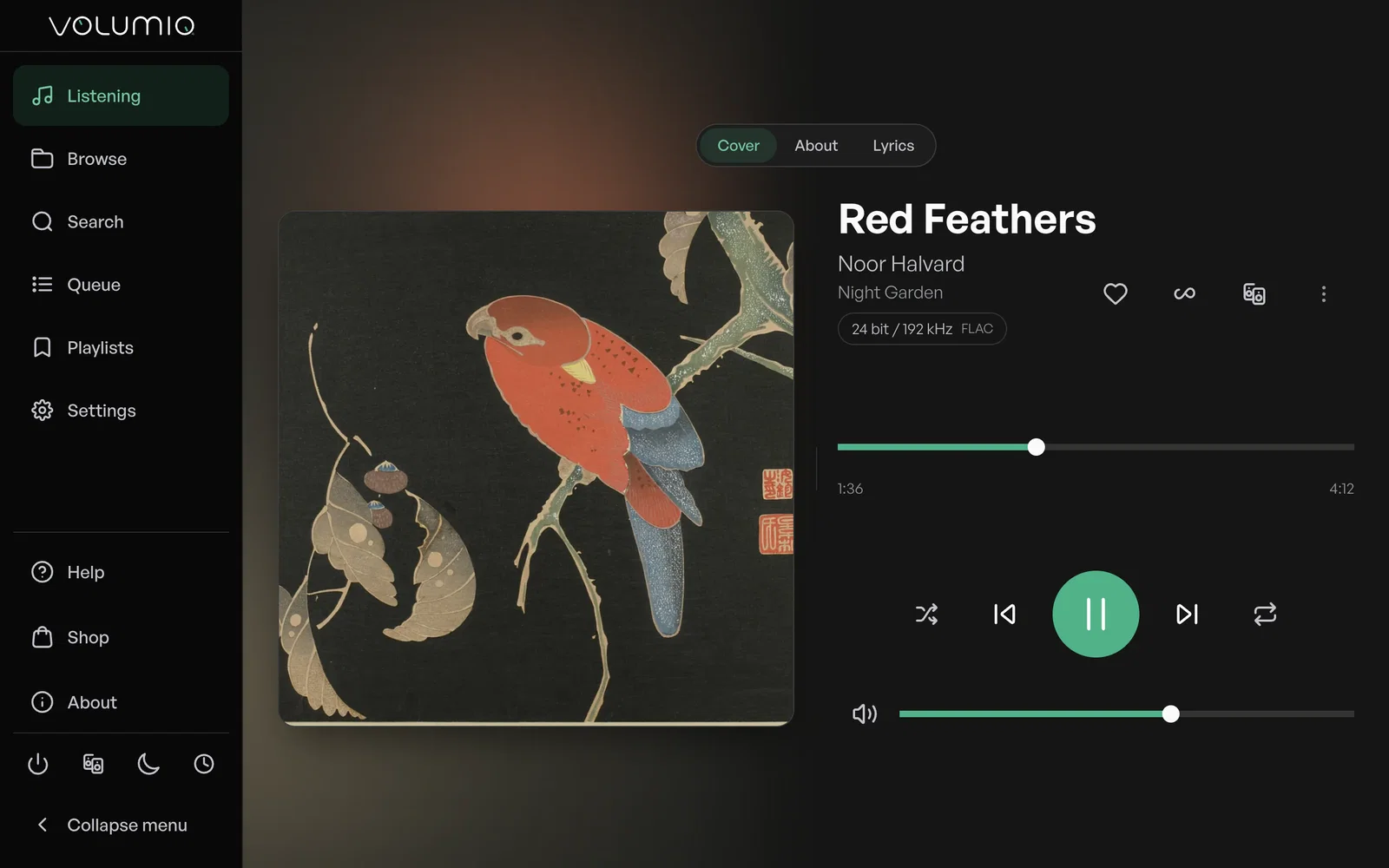
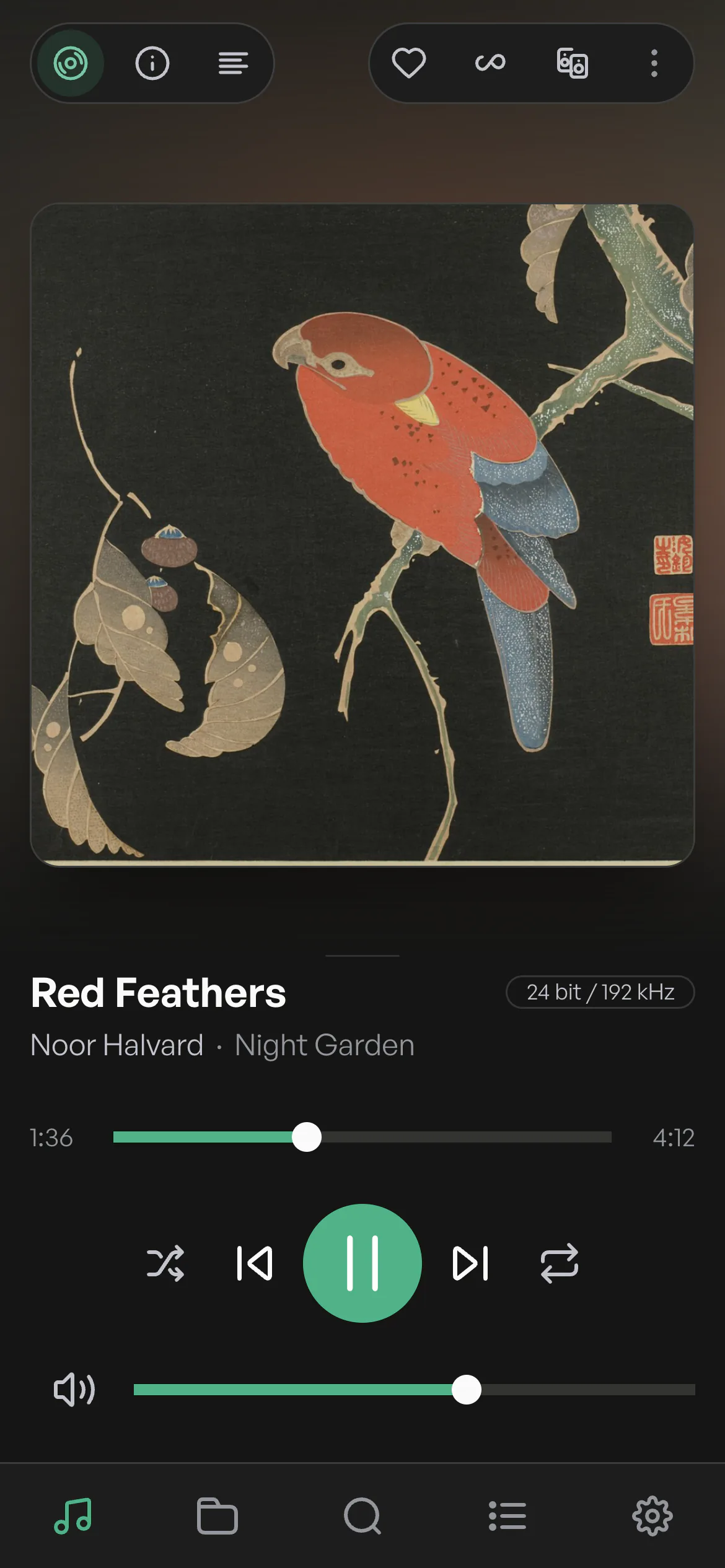
Open your player from your phone, computer or tablet: in the Volumio app, at volumio.local, or at its IP address.
Open it
Three ways to open your player
Use any phone, tablet or computer on the same network as your player.
The Volumio app
On iPhone and Android. The app finds the players on your network by itself: choose yours. A new player? It shows up as online: tap Setup.
Its name, in a browser
On a computer or a tablet, go to volumio.local. Volumio devices and renamed players use their own name: rivo.local, or living-room.local for a player called Living Room.
Its IP address
Find the player in your router's list of connected devices, then type its address in the browser, like 192.168.1.54.
Some Android phones don't open .local addresses: use the app, or the IP address.
First setup
A new player? Connect it in minutes.
With a network cable, your player joins your network as soon as it starts. Without one, the app sets up its Wi-Fi.
Step 1: Switch it on
Give it a couple of minutes to start.
Step 2: Open the app
When your player shows up as online in the Volumio app, tap Setup.
Step 3: Follow the setup
The guided setup connects your player to your Wi-Fi.
No app? Use its own Wi-Fi
Until it's on your network, a player without a cable creates its own Wi-Fi network, for the first setup.
- On your phone or computer, join the Wi-Fi network your player creates. It is called Volumio- followed by a short code, like Volumio-3FA9C, with no password.
- In the browser, go to volumio.local or 192.168.211.1.
- The setup asks for your Wi-Fi network and its password. Then your player joins it.
Can't find it?
Five quick checks
Most of the time, the player and your phone or computer are on different networks.
Same network
Connect your phone or computer to the same network as the player: not a guest network or mobile data, and with any VPN turned off.
Give it a couple of minutes
After you switch it on, the player needs a couple of minutes before it shows up.
Look in your router
Find the player in your router's list of connected devices, then open its IP address in the browser.
One connection at a time
If the player is connected by cable and by Wi-Fi at the same time, unplug the network cable and look for it again.
Try a network cable
Connect the player to your router with a cable. If it shows up, move it closer to the router for Wi-Fi.
Still not there? Switch the player off and on again, then ask us.
FAQ
Questions and answers
What's the address of my Volumio?
volumio.local, or your player's name followed by .local, like rivo.local. Its IP address works too: you find it in your router's list of connected devices.
Do I need a password to open it?
No. On your home network, your player opens without a password. Volumio Premium uses your MyVolumio account, which you sign in to from the player.
What's the SSH user and password?
SSH is for developers, and it's off by default. Turn it on at volumio.local/dev: the user and the password are both volumio. Turn it off again when you're done.
Why doesn't volumio.local open on my phone?
Some Android phones don't open .local addresses. Use the Volumio app, or the player's IP address.
Can I use my player away from home?
Yes, with remote access, one of the Premium features. Volumio devices have it built in; on a Raspberry Pi or a PC it comes with Volumio Premium.
More help